
Examples
Getting started
Kanban with FileMaker and PHP
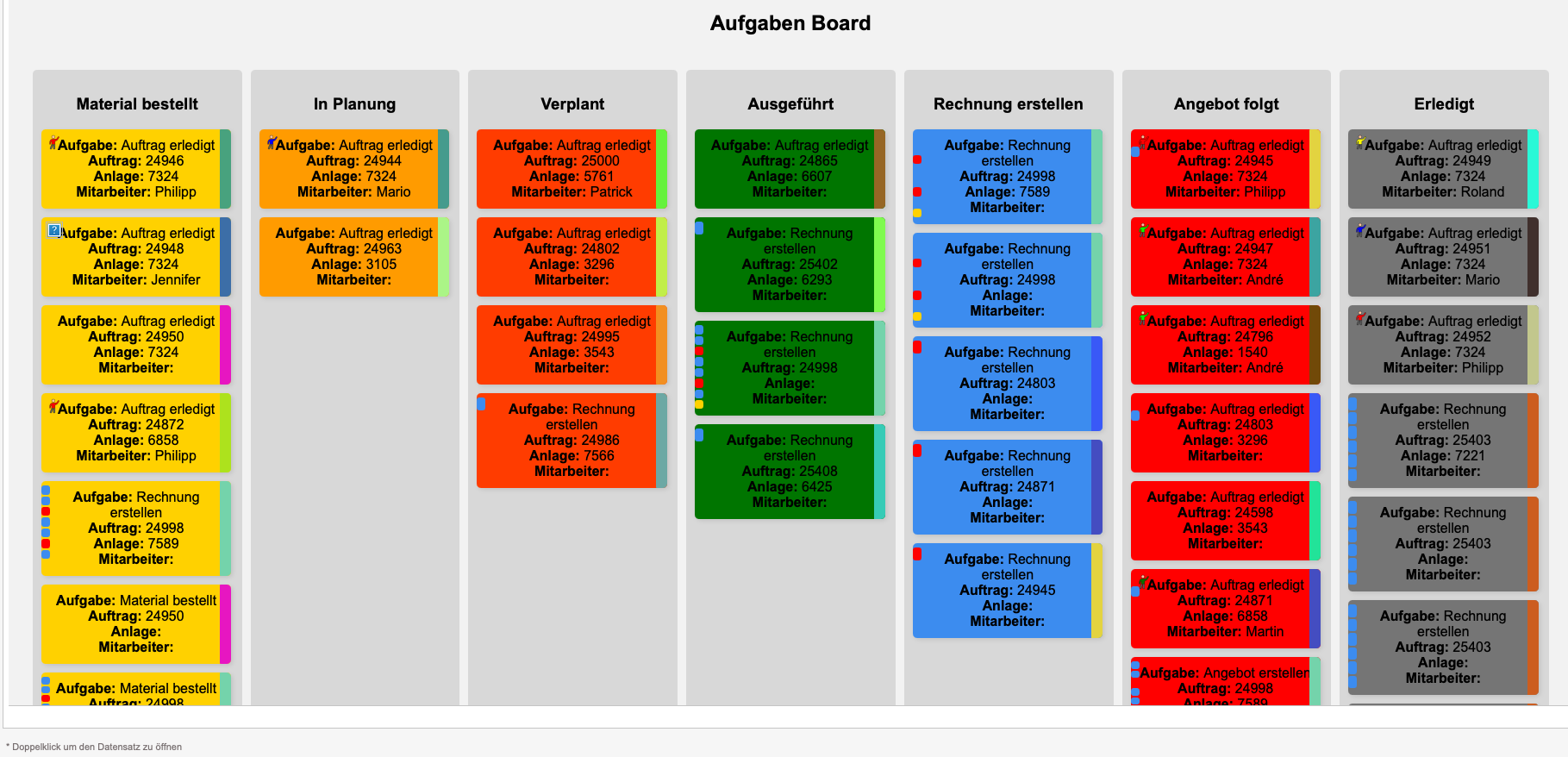
Who doesn't know it in FileMaker, the Kanban view? It is possible, but rather limited. No real color control, no icons within the tiles and no wide choice of information that can be displayed.
What did I do ?
- The data is passed to a PHP script via POST.
- The returned data is displayed within a WebViewer.
- The changes in the Kanban are captured and processed within FileMaker.
ZUGFeRD with FileMaker
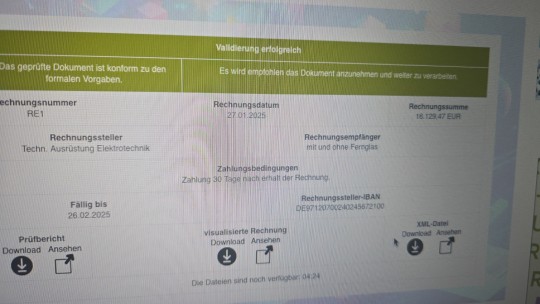
In a first version, the implementation was realized with the help of the MBS plugin
What is required?
- The MBS plugin.
- The rest is very convenient; there are numerous examples that make getting started extremely easy.
- My own implementation will be finished within the next two weeks. It is being implemented with PHP and various libraries. The actual process of integrating the XML into the existing PDF will take place server-side.
FileMaker with Google Maps
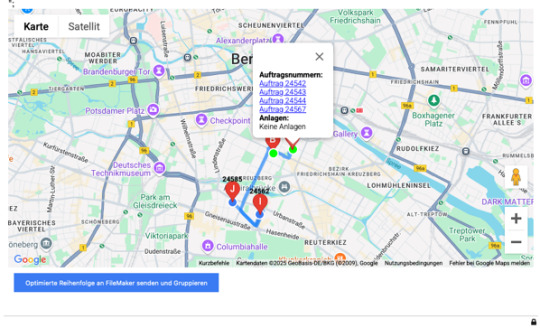
Optimizing Google Maps for managing multiple orders with overlapping geodata
Why and How ?
- In modern logistics and order management, precise maps with multiple orders are an indispensable tool. But what happens when several orders share the same geoposition? These markers can only be distinguished by their labels. In this project, they show the order number. If it is illegible, it is clear that several markers are lying on top of each other. Our latest project focused on visualizing such scenarios, including color highlighting and grouping of overlapping markers as well as optimized data transfer to external systems such as FileMaker, in our case exclusively FileMaker.
- The goal was to develop a dynamic Google Maps application that: 1. Displays multiple orders, even if they have the same position. Same positions mean we have the same geodata, i.e. house number, street and postal code are identical. 2. Uses color coding for such “overlapping” markers to make them easier to recognize. 3. Displays detailed information about each order in an info window. 4. Seamlessly transfers the optimized order sequence to FileMaker.
- Marker customization for overlapping geodata We implemented a map function that detects duplicate markers at the same position and highlights them in color. In doing so, we: • Used a blue marker for single orders. • Introduced green markers to indicate overlapping positions. In addition, an info window displays all associated order numbers when a marker is clicked. Via the displayed order numbers, all relevant data can be called up within FileMaker with a click.
Customizing Maps
Customize Maps views: dynamically visualize employees and order status with simple icons
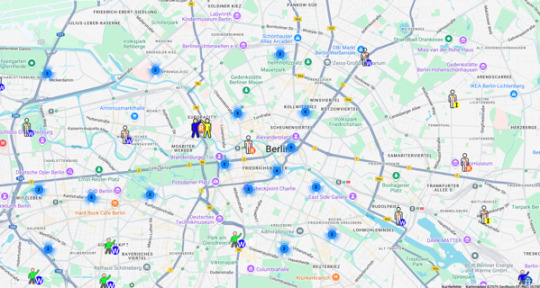
Displaying information on maps is an essential tool for companies with field service employees.
- 1. The initial situation Imagine your company manages field service employees with a FileMaker solution. Employees work alone or in pairs, and their tasks are clearly categorized: • Maintenance (W) • Service (S) • Repair (R) • Commissioning (I) The challenge is to clearly display the following information on a map: 1. Who is working where? 2. Is the employee working alone or in a team? 3. Which order is currently being processed?.
- I was able to solve the challenge by using custom icons that: • Represent the employee (or the team) with a distinct colored T-shirt. • Show a badge (W, S, R, I) on the icon to indicate the type of order. • Show an empty icon with the corresponding badge for unscheduled orders. Example: • Mario works alone: an icon with a blue T-shirt. • Mario and Anna work together: an icon with two figures, Mario (blue T-shirt, Anna with a pink shirt) is the lead employee. • An unassigned maintenance order: an empty figure with a badge “W”. • An unassigned service order: an empty figure with a badge “S”.
- The names of the icons naturally follow fixed naming conventions, e.g. Rot_Hellbraun_M.png or Rot_Hellbraun_W.png. The composition takes place within FileMaker via a loop over the orders to be displayed, during which the name of the +.png is also determined. The handover works as in my previous posts. The preparation is individual. Do I want to make it all clickable to show further information in an InfoWindow, do I want to start a FileMaker script right away, etc. Conclusion Customizing map views with FileMaker and Google Maps is a great way to manage field service employees efficiently. By combining icons, colors and badges, we get a clear and visually appealing representation of the current work distribution. We should just bear in mind that with many possible combinations, this approach is no longer up to date.
Employee assignment from FileMaker with AI evaluation via PHP
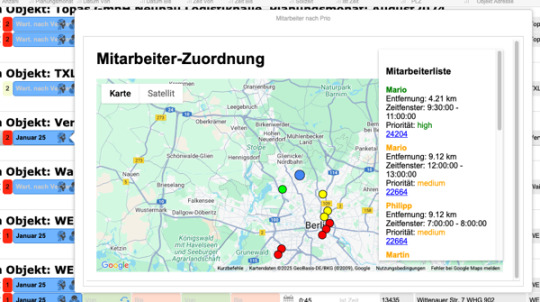
This project combines PHP, the Haversine formula and the Google Maps API to select the best employees for a support request based on location and availability. The result is displayed on an interactive map, and an employee list shows all relevant details such as distance and priority. The reason: many employees are deployed at different customers. However, it may be necessary for a second or third employee to be required for this assignment. It is difficult to try to assign employees from memory.
What and How ?
- Our goal is to create a system that: • Prioritizes employees based on distance and time availability. • Visualizes locations on a map. • Automatically shifts overlapping locations to make them visible. • Generates a clear employee list.
- Distance and data processing In the following PHP script, we calculate the distance between locations using the Haversine formula, filter the employees and send the data to an AI analysis.
- Tasks of the AI 1. Data analysis: The AI evaluates the transmitted data, including the locations and availability of the employees, as well as the requested time span. It decides which employees are best suited, based on: • Geographic proximity (distance). • Time availability (overlap with the requested time). • Prioritization criteria. 2. Employee prioritization: The AI sorts the employees into priority classes (high, medium, low) to facilitate decision-making. This is particularly helpful in complex scenarios with many participants and differing requirements.
Extended portals in FileMaker: list with PHP and Web Viewer

Extended portals in FileMaker: asset list with PHP and Web Viewer FileMaker is a versatile tool for database applications. But sometimes we run into technical limits, such as the lack of the ability to place another portal within a portal. We can work around this limitation with PHP and a Web Viewer. In this blog, we show how you can display the assets of an order in a popover button – including interactive buttons that run FileMaker scripts. This enables you to address a record in FileMaker as well, rather than just using the WebViewer for display.
- In my example, I start from orders. These are displayed via a portal. Each order can have several assets; at my current customer, these happen to be assets in the field of water supply. The goal 1. Displaying the assets of an order: a dynamic list of assets, displayed in a Web Viewer. 2. Interactive actions: buttons that start a FileMaker script to display the respective asset. Solution: FileMaker + PHP 1. Data transfer from FileMaker to PHP The first step is to pass the relevant data – e.g. a list of assets – to a PHP script. This is done with a FileMaker script that sets the Web Viewer URL dynamically
- We can combine all of this dynamically with FileMaker script calls.
- We get a list in the style of a portal. This enables us to show portals within a portal.